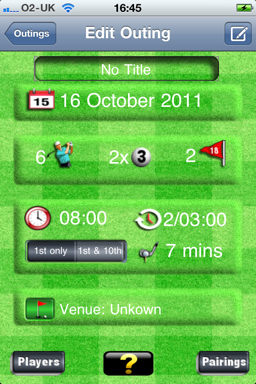
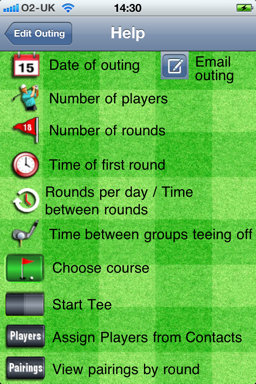

The Email (also known as Compose) button creates an email to the players in the outing, this is described on the Email page.
Title
The top edit box is where you can name your outing. This is the name that appears in the Outings list on the first page.
Simply tap the box and you get the standard keyboard, where you can enter and amend the title

Start Date
This shows the date of the first day of the Outing.
To change this date tap on the calendar icon, this brings up a date picker as shown below:
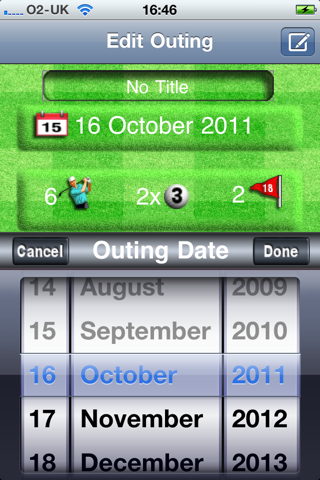
You simply rotate the dials to the date you require and tap Done when ok, or if you change your mind tap Cancel and the date will be left unchanged.
Note: You cannot choose a date in the past.


Players, Rounds and Group Mix
To change the number of players, the group mix (ie number and size of the groups) or the number of rounds, tap on either the player or 18th Flag icon.
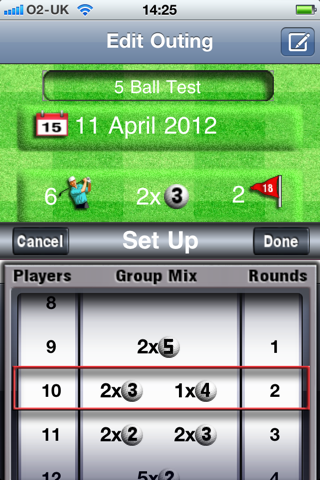
Once tapped the following popup appears:
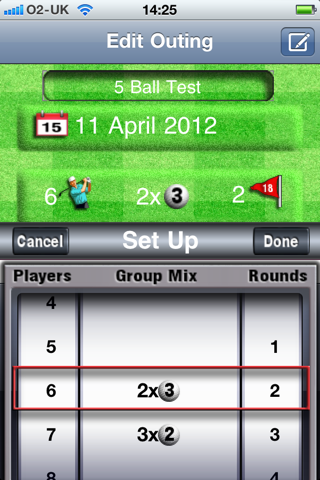
Here there are 3 spinners.
The left hand spinner you rotate to set the number of players.
The middle spinner gives you possible group mix options for the number of players selected. In the example above 2x 3 Balls is selected, with the option of 3 x 2 Balls
The right hand spinner lets you set the number of rounds to be played.
As you change the number of players the middle spinner changes to give you possible Group Mix options for the number of players,an example is shown below:
When you are happy with your selection tap Done, if not tap Cancel and the original selection remains.


Tee Times and Options
This group of icons allow you to set various parameters that effect which tee and times the groups start at.

Start Time
Tapping on this icon brings up a popup (as below) that allows you to set the First Tee off time of each day.
Subsequent tee off times of rounds in the same day are automatically derived from this time.
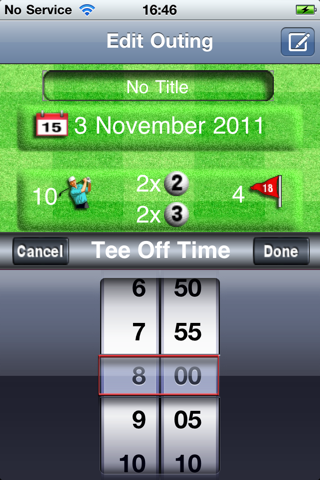
When you are happy with your selection tap Done, if not tap Cancel and the original selection remains.

Rounds per day and Time between rounds
Adjacent to this icon is shown the number of rounds to be played per day and the time between rounds on the same day teeing off.
For example 2/04:30 means that 2 rounds per day will be played and each round will start 4 hours and 30 minutes apart.
If only 1 round is to played per day then 1/--:-- is displayed, as the time between rounds is not relevant, ie the next round starts the following day.
To change the setting you click the icon and the following popup appears.
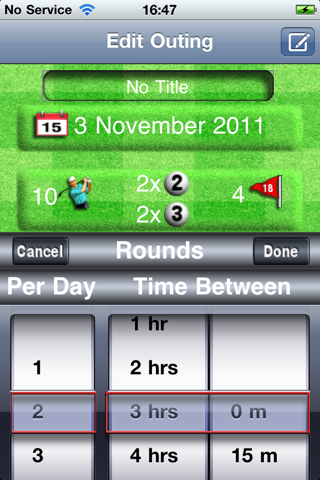
The left hand spinner lets you set the number of rounds.
The right hand spinners lets you change the time between rounds.
If you select 1 round per day, the right hand spinners move off screen, changing to any other value brings them back.
When you are happy with your selection tap Done, if not tap Cancel and the original selection remains.
Start Tee(s)
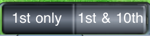
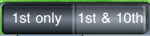
This selector allows you to decide whether groups start from the 1st Tee only or from the 1st and 10th tees simultaneously (split tee).
The darkened item shows the currently selected option, eg the icon above is 1st only.
You tap which you prefer directly.

Group Tee off interval
The number next to this icon indicates the time interval between groups teeing off from the same tee, in minutes.
Tapping the icon causes a popup to appear that allows you to change this figure, as below:
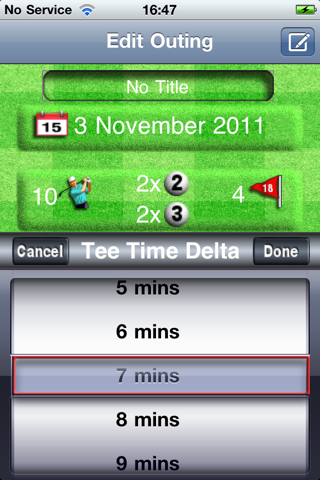
When you are happy with your selection tap Done, if not tap Cancel and the original selection remains.

Venue (Course Selection)
Next to this icon appears the Venue, ie the name of the course at which the Outing will be held.
Clicking the icon takes you to the Course Finder page.

Players
This button when pressed takes you to the Player page, where you can allocate players participating in the Outing from your Contact List.

Pairings
This button takes you to the Pairings page. This page shows you, on a round by round basis:
- Which players are in each group
- The Tee and Tee Time for each group